Tuesday, January 22, 2013

Install Mate Desktop on Fedora 18

This guide contains instructions to install Mate desktop on Fedora 18. On of the new features about Fedora 18 is that it supports Cinnamon and Mate desktop. For those prefer an older look similar to GNOME 2, you can install Mate desktop.

Installing Mate Desktop
To install Mate desktop use the command:
sudo yum install @mate-desktop

The above command is the same as yum group install.

Once the installation is complete, logout and login with Mate session as shown below.


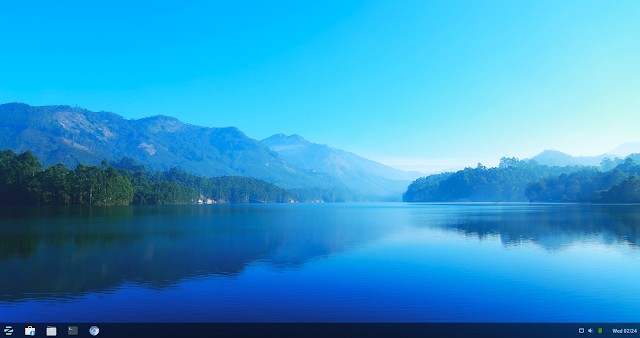
You will get the desktop that is similar to GNOME 2.


Note:
Please note that you may have duplicate applications such as terminal, calculator and archive manager etc.

*** End ***

Saturday, January 19, 2013

Install Cinnamon Desktop on Fedora 18

This is the guide to install Cinnamon desktop on Fedora 18.


Installing Cinnamon Desktop


Open a terminal window and issue the following command:
sudo yum install cinnamon 

The previous command will install the basic desktop. To install all Cinnamon desktop related software use the command

sudo yum group install cinnamon 


You can also install the software tools under Activities >> Show Applications >> System Tools >> Software. Do a search for cinnamon on the top left corner. Check on cinnamon-desktop and click "Install Package"


After installation you may need to logout or restart the system.

Using Cinnamon Desktop

On the login screen (shown below) click on the arrow next to the word session and select "Cinnamon"


After login, the desktop is appear differently then GNOME.


To launch program click on "Menu" on the lower left corner.


Please note that you can configure the bottom panel to appear on top. To do that you need to launch "Cinnamon Settings". You can launch from menu (The first icon on the favorites list) or you can launch from the panel by clicking on "^".


Select "Panel" to flip the panel to the top. Use the settings as shown below.


For the setting to take effect, you need to logout and login again. The desktop is shown below.


You can add additional applets by going to Cinnamon Settings >> Applets. 


If you can find what you want click on "Get new applets" or go the the Cinnamon Applets page. Download the applets you want and decompress it in ~/.local/share/cinnamon/applets/ folder.

You can customize many things under Cinnamon Settings. You can change keyboard shortcut, set hot corners, add workspace and change windows effect. Please feel free to explore and experiment with the settings.

*** End ***


Friday, January 18, 2013

Install Fedora 18 on VirtualBox with Guest Additions

This post is about installing Fedora 18 on VirtualBox as guest OS including installation of VirtualBox Guest additions. For installation of VirtualBox on Fedora 18, please refer to this post "Install VirtualBox on Fedora 18". 


Configuring VirtualBox Virtual Machine

In the VirtualBox Manager, click "New" to create a new virtual machine.


Enter the name of virtual machine, the type of operating system and indicate whether it is a 32-bit or 64-bit operating system. 


Select the memory size for this virtual machine.


To create a new hard drive, select "Create a virtual hard drive now" and click "Create".


Select "VDI" and click "Next".


 Opt for "Dynamically allocated" and click "Next".


Finally, enter the name of your virtual hard disk and specify the maximum hard disk space allowed. Previous I encounter some problem while using the default 8 GB. I've set it to 12 GB.


Click "Create" when done.


Next, you need to go into the setting for more configurations. On the screen below click on "General" or "System" to activate the setting page for this virtual machine.


The setting page is shown below.


Select the "Advanced" tab and change "Shared Clipboard" and "Drag 'n Drop" to bidirectional. These features allows the host OS and guest OS exchange data by cut and paste. It even allows drag and drop of files. (Note: At the time of this post I couldn't perform drag and drop from guest to host, however, drag and drop from host to guest works fine)


For multicore PC, you can change how the guest OS utilize the CPU. The default is 1. 


Under display, expand the video memory to the maximum and enable 3D and 2D acceleration.


Click "OK" when complete.


Getting Fedora 18

You can download the latest version of Fedora from the home page https://fedoraproject.org/ or you can get Fedora at https://fedoraproject.org/en/get-fedora.

Click "Download Now" and you will download a disc image in ISO format named "Fedora-18-x86_64-Live-Desktop.iso".

Alternatively, if you would like to download other spins or the full DVD, there are more download option at https://fedoraproject.org/en/get-fedora-options.


Starting Virtual Machine for the First Time

Select the virtual machine you want to start and click "Start".


For the first time the virtual machine will prompt you for installation disk. Navigate to the folder where you stored the ISO and select the appropriate ISO.


Click "Start" when done.


Installation of Fedora 18

I will briefly run through the installation process. For detail configuration, please refer to my post Fedora 18 Installation Guide.

On the welcome screen, click "Install to Hard Drive".


The first screen appears and you need to select the appropriate language for your system. Click "Continue".

On the next screen, you can configure Date & Time, Keyboard and the Installation Destination. Use the default for Date & Time and Keyboard. Click on "Installation Destination".


The screen will show your only only available hard disk on your virtual machine. Click "Continue" on the lower right corner. For the next screen "Installation Options", use the default and click "Continue".


If you prefer to configure the hard disk manually, please refer to my post Fedora 18 Manual Disk Partition

If your hard disk configuration is complete, you can proceed further by clicking "Begin Installation" on the lower right hand corner. Next, you need to setup the root password and wait for the installation to complete.


Finally, when the installation is complete, select "Quit" to exit the installer and reboot the system.


Post Installation Setup

After system reboot, you need to perform additional setup. Follow the wizard and setup a new user account. Click "Finish" when you are done. Finally the system will prompt you to login. This signal the completion of installation. 

For post installation configuration please refer to my post  Fedora 18 Post Installation Software Configuration Guide.


Installation of VirtualBox Linux Guest Additions


You need to install the Linux Guest Additions in order to share data and folders between the host and Fedora client. The use features are sharing of clipboard and sharing of file using drag and drop.

System Update
Before any installation, please update your system by running the following command:
sudo yum update

Please reboot the system if you have just installed a new kernel.

Pre-Installation Setup
Before installing VirtualBox Linux Guest Additions, you need to install gcc, dkms and kernel development module. Use the following command:
sudo yum install gcc kernel-devel dkms


Next you need to mount the Linux Guest Additions Image Disc. Under the VirtualBox menu bar, select Devices >> Install Guest Additions...

Click cancel if they ask if you want to run the disc image.

Install Linux Guest Additions
Once the disc image is mounted, use the following command (case sensitive):
cd /run/media/$USER/VBOXADDITIONS*
sudo ./VBoxLinuxAdditions.run

You need to reboot the system after the installation is complete.

Problem with Linux Guest Additions


  • If you could not find the path /run/media/$USER, please note that you could not find the path under Cinnamon desktop. You need to logout and login using GNOME or MATE.
  • Please note that I've install Linux Guest Additions on Fedora 18 as guest OS on Fedora 18 host. After Linux Guest Additions is installed, the guest system appears to have some display problem when login via GNOME3 (GNOME and Cinnamon). I could only login via Mate desktop. I did not encounter such problem when I was installing Fedora 18 as guest OS on a Windows host.


Additional Post

You can check out other additional posts on configuration of Fedora 18:
Install Cinnamon Desktop on Fedora 18
Install Mate Desktop on Fedora 18


*** End ***


Install Oracle VirtualBox on Fedora 18

This procedure is to install Oracle VirtualBox on Fedora 18. You can also use the same procedure to install VirtualBox on Fedora 15, Fedora 16 and Fedora 17. 

If you had follow my post before and confident with my script, you can scroll down to the bottom of the post and download the script. The script will automatically download, configure and install VirtualBox.

Manual Procedure
First, you need to download the repository file from VirtualBox using the following command:
wget http://download.virtualbox.org/virtualbox/rpm/fedora/virtualbox.repo 


If your system could not recognize wget using the command to install wget:
sudo yum install wget


Then you need to move the file "virtualbox.repo" to the folder /etc/yum.repos.d/. In the terminal, navigate to the location where you kept the file and use the command:
sudo mv virtualbox.repo /etc/yum.repos.d/

Then you need to install gcc, kernel-devel and dkms:
sudo yum install gcc kernel-devel dkms

To install the latest version of VirtualBox use the command:
sudo yum install VirtualBox-4.2


If you prefer the older version of VirtualBox just change the version number such as:
sudo yum install VirtualBox-4.1
sudo yum install VirtualBox-4.0
sudo yum install virtualbox-3.2
sudo yum install virtualbox-3.1
sudo yum install virtualbox-3.0


Automation Script
I've created an automation script that perform the previous steps and install the latest version of VirtualBox. You can download this script FC00-vbox-install-noarch. If you prefer to install the older version, you need to modify the script.

The entire script is listed below:
#! /bin/bash

# IMPORTANT: READ THE FOLLOWING
# This script is to install VirtualBox in Fedora
# This script must be used with root access 
# This script will download the repository file for yum from http://download.virtualbox.org/virtualbox/rpm/fedora/virtualbox.repo
# Then this acript will move the repo file to the yum depository folder at /etc/yum.repos.d/
# VirtualBox need to recompile the kernel, if you have just updated a new kernel, you should reboot the system before running this script

# Downloading repo file
echo "Downloading repo file from VirtualBox..."
yum install -y wget
wget http://download.virtualbox.org/virtualbox/rpm/fedora/virtualbox.repo

# Move repo file to the repositary directory
echo "Moving VBox repo file to Yum repo folder..."
if [ -e virtualbox.repo ]; then 
 mv virtualbox.repo /etc/yum.repos.d/
 echo "Done!"
else 
 echo "Could not find the file virtualbox.repo! Please check your Internet connection!"
 echo "If you download the file manually, make sure that the file is place in the same directory as this script"
 exit 1
fi


# Installation of VirtualBox
echo "Installing files required for running VBox..."
yum install -y gcc kernel-devel dkms

echo "Installing VirtualBox...."
yum install -y VirtualBox-4.2

Please remember to change the script to execution mode:
chmod +x FC00-vbox-install-noarch

To run the script use the command:
sudo ./F00-vbox-install-noarch


*** End ***

Thursday, January 17, 2013

Install Adobe Flash Player on Fedora 18


Special Notes

For Google Chrome user, you do not need to install Flash Player since Google Chrome comes with its own Flash Player plugins. For Firefox user, you need to install Adobe Flash Player to play embedded video from YouTube and various websites. This installation guide allows user to install Adobe Flash Player on Fedora 18. The procedure is the same as the previous Fedora version therefore, you may also use the following procedure for Fedora 15, Fedora 16 and Fedora 17. 


Configuring YUM Repository File

First you need to download the rpm file from https://get.adobe.com/flashplayer/ 
Select  "Yum for Linux" as shown below.


You will be downloading a file "adobe-release-x86_64-1.0-1.noarch.rpm" into your download folder.

Navigate to your download folder and issue the following command:
sudo rpm -ivh adobe-release-x86_64-1.0-1.noarch.rpm
Then issue this command to import the keys:
sudo rpm --import /etc/pki/rpm-gpg/RPM-GPG-KEY-adobe-linux

The above installation configures the YUM repository so that you could install Flash Player using YUM command.
You could make sure that the repository file is configure properly by looking for a file "adobe-linux-x86_64.repo" under the folder /etc/yum.repos.d/

Install Adobe Flash Player

The installation is very simple and straight forward, use the command:
sudo yum install flash-plugin

Refresh your browser and go to https://www.adobe.com/software/flash/about to verify your plugins installation. A little box will shown which version you have installed as shown below. Alternative, you can visit https://www.youtube.com to test some of the videos.


*** End ***

Wednesday, January 16, 2013

Install Dropbox on Fedora 18

This installation guide has been tested for Fedora 18. However, you can also use the same method to install Dropbox on Fedora 16 and Fedora 17. 

To install Dropbox in Fedora 18, we need to configure a Dropbox repository and perform a yum install from the system terminal.

Configure Dropbox Repository
Create a file called dropbox.repo with the following:
[Dropbox]
name=Dropbox Repository
baseurl=http://linux.dropbox.com/fedora/$releasever/
gpgkey=http://linux.dropbox.com/fedora/rpm-public-key.asc

You can also download a copy from here. Place the file under /etc/yum.repos.d.

Installing Dropbox
Run yum install using the command:
sudo yum install nautilus-dropbox

Note: If you encounter any error while downloading nautilus-dropbox. You might need to change the base url in the repo file from http://linux.dropbox.com/fedora/$releasever/ to http://linux.dropbox.com/fedora/17/

Completing the Installation
After installation is done, you need to run Dropbox (Show Applications >> Internet >> Dropboxapplication to complete the installation and configure an user account.


Click "OK"


Wait for the installation to complete.


Select "I already have a Dropbox account"


Enter your Dropbox account information and follow the installation.

Automation
You could also download a script file I've created to automate the installation process.

The entire script is listed below:
#! /bin/bash
# This software installation script is for Fedora 16 / Fedora 17 / Fedora 18 (32-bit/64-bit)
# It configures Dropbox yum repository and install Dropbox

#ensure that wget is installed
yum install -y wget

#Addition yum repo file from Dropbox 
wget http://dl.dropbox.com/u/30876345/repo/dropbox.repo 
mv dropbox.repo /etc/yum.repos.d


#Install Dropbox
yum install -y nautilus-dropbox

echo "Important! The installation is NOT complete!"
echo "You need to activate the dropbox program to complete the installation and configure a user account. The program is under Applications >> Internet >> Dropbox"
echo "For Fedora 18, go to Show Applications >> Internet >> Dropbox"


Running Script File
Remember to give execution permission to the script by running the command:
sudo chmod +x FC00-dropbox-install-noarch
sudo ./FC00-dropbox-install-noarch

*** End ***

Install Google Chrome on Fedora 18

The recommended way to install Google Chrome is to navigate to the Google Chrome site at https://www.google.com/chrome, the site will automatically detect your operating system and display the appropriate download for you.

Download Google Software Package Public Signing Key (Important!)

Before you proceed to install Chrome, you need to download and import the public signing key from Google. You can skip this step if you have done this before while installing other Google products. Use the following command:

wget https://dl-ssl.google.com/linux/linux_signing_key.pub
sudo rpm --import linux_signing_key.pub 


Please note that you only need to download the public key only once for all Google products in Linux.

Installing Google Chrome 

Then, you visit the site https://www.google.com/chrome. The site will detect you operating system and display the appropriate download page as below.


Click "Download Chrome"


Select "64-bit .rpm (For Fedora/openSUSE)". Click "Agree and Install".


If you are using Firefox browser, it will display a box as above. Select "Open with Software Install" and Click "OK".


Click "Install". You need to enter your password to authentication.

Depending of which software you have installed previously. You may received an additional box that inform you to install additional dependencies software. Install any dependencies software as per recommendation.


Click "Continue" to complete the installation. The installation will complete after a while. To confirm, Google Chrome is located under Show Applications >> Internet.

Error

If you received the following error, you have not downloaded Google's public key yet. Please following the instruction above.


*** End ***